1. Team tracking overview
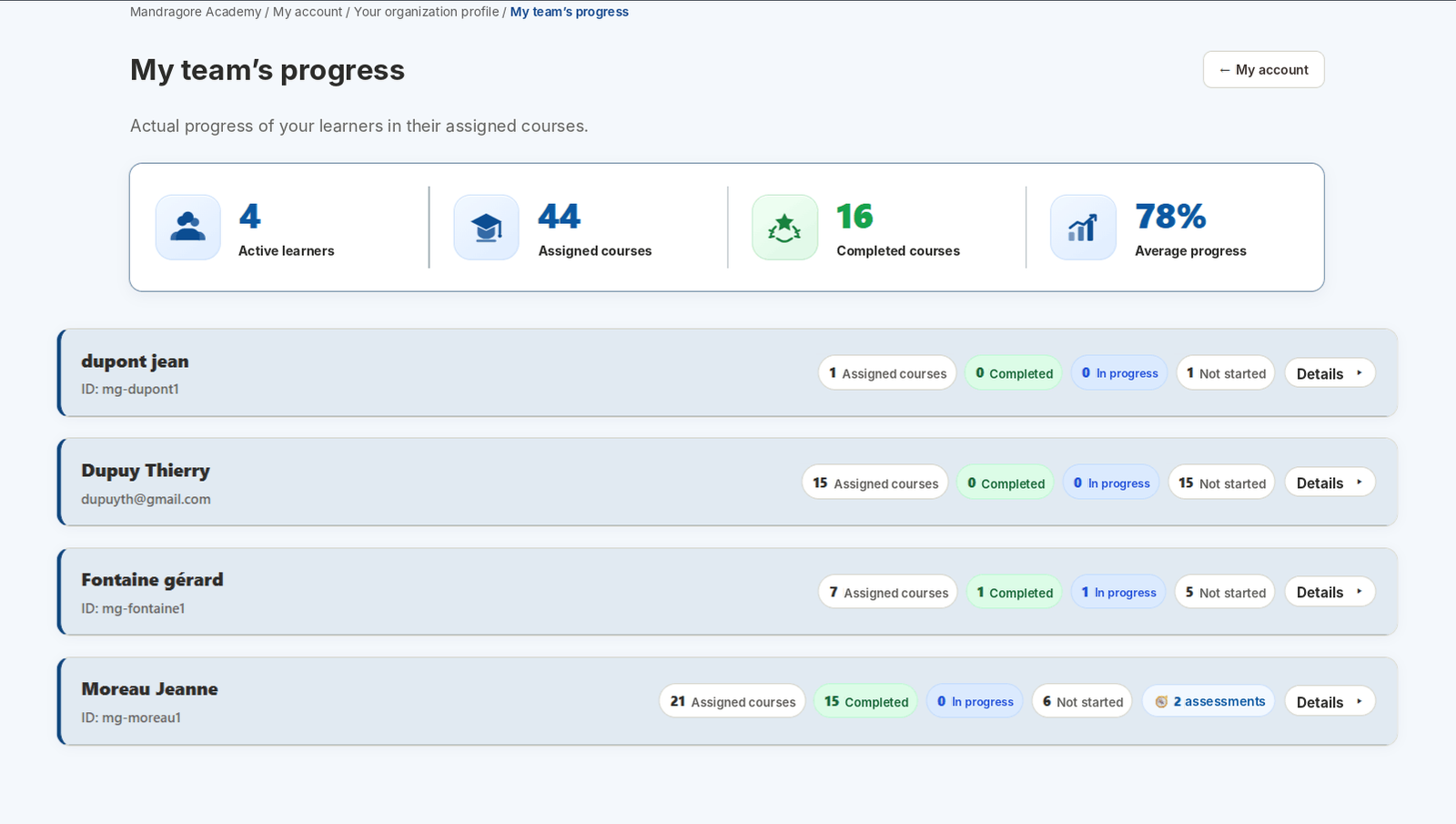
The Team progress tracking page summarises active learners, assigned courses, completed courses and average progress.
Each learner then has a row showing assigned, completed, in-progress and not-started courses, plus starting-level assessments.
2. Learner detail and starting-level assessments
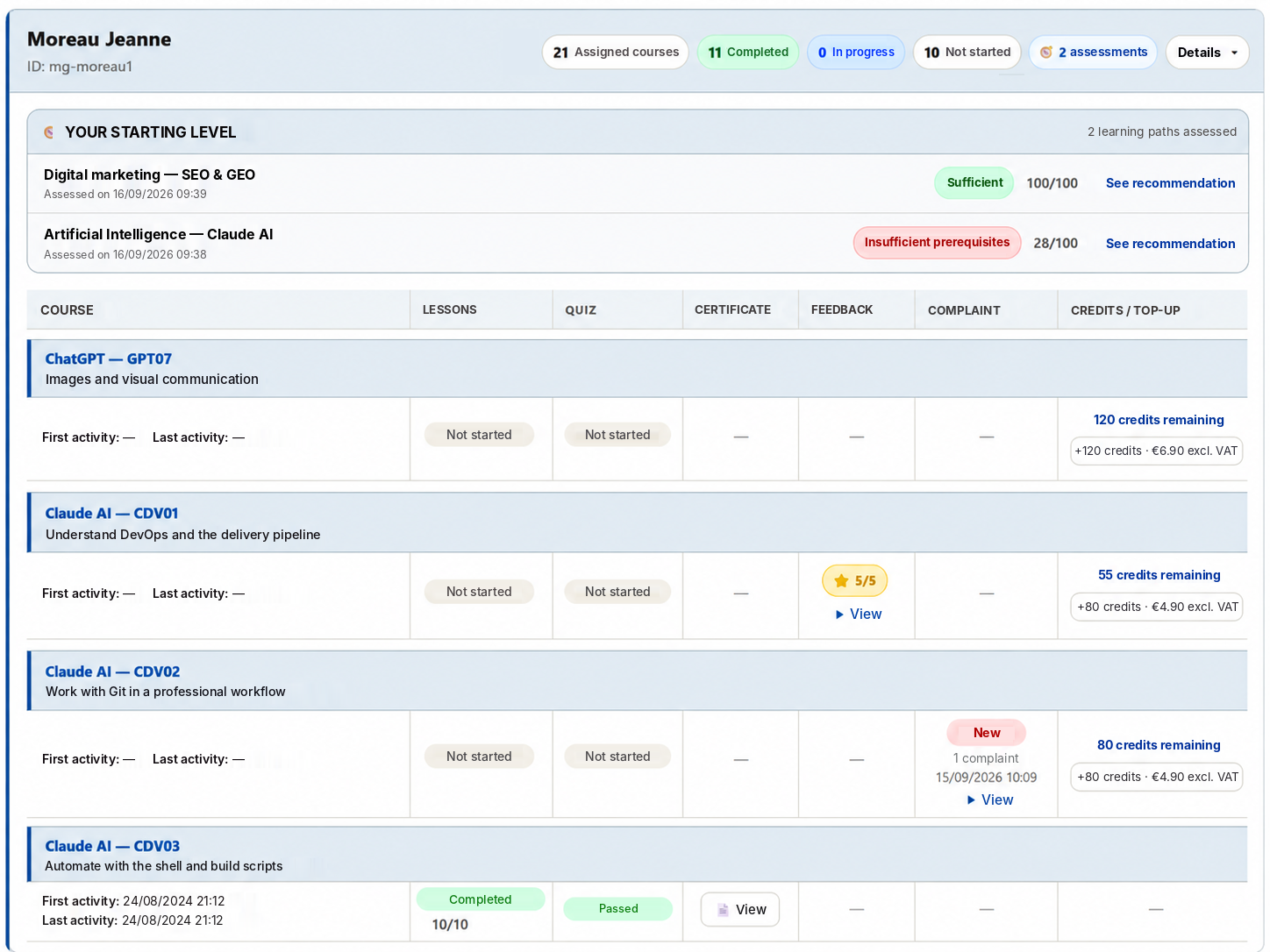
The Details button opens the full learner view with progress counters and any completed starting-level assessments.
Each assessment shows the score, result and recommendation. It provides guidance but does not block training access.
3. Activity, lessons, quiz and course completion
Each Learning Workspace shows first activity and last activity, which help confirm a real start and identify inactivity.
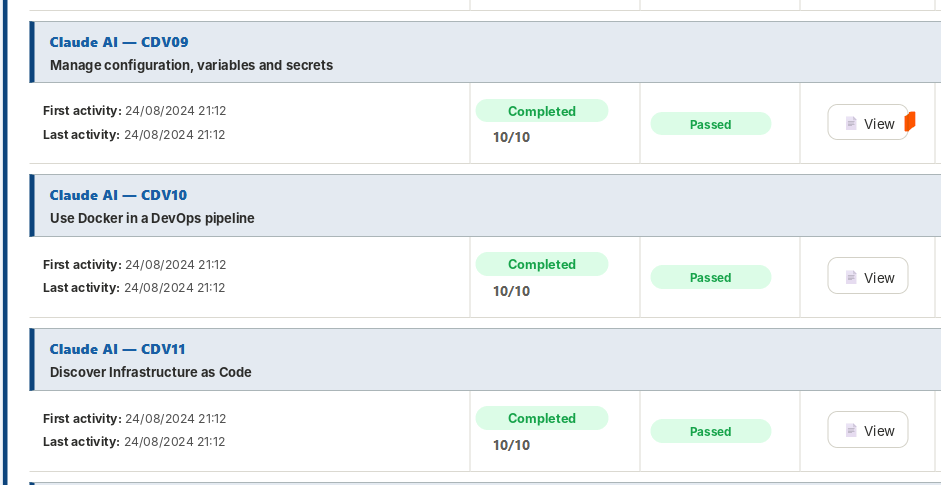
The Lessons column shows progress. A finished course can show Completed with 10/10 lessons. The Quiz column then displays the result, for example Passed.
The Certificate View button is available when all lessons are completed and the final quiz reaches the required threshold.
4. Workspace in progress and top-up
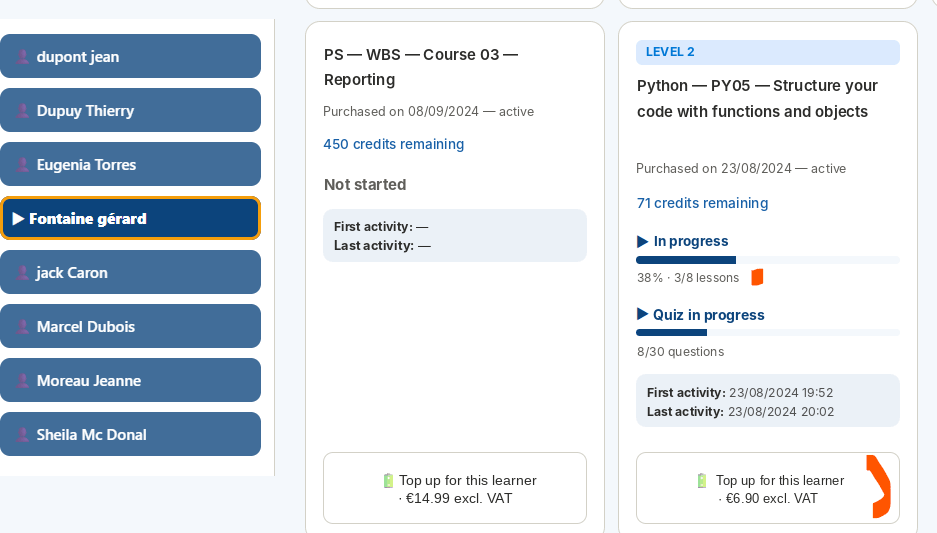
When a Learning Workspace is in progress, its card shows actual progress: progress percentage, completed lessons, quiz progress, first activity and last activity. This lets the person responsible for training in the organisation see immediately where the learner stands.
A top-up belongs to the specific Learning Workspace of the learner currently displayed. The “Top up for this learner” button appears directly on the relevant card with the top-up price. Select the learner, locate the Learning Workspace to recharge, then use the top-up button on that card.
Added credits apply only to that learner and that Learning Workspace; they are not a shared organisation-wide credit pool. Another Workspace card may therefore show a different top-up amount.
5. Reviews, claims and credits
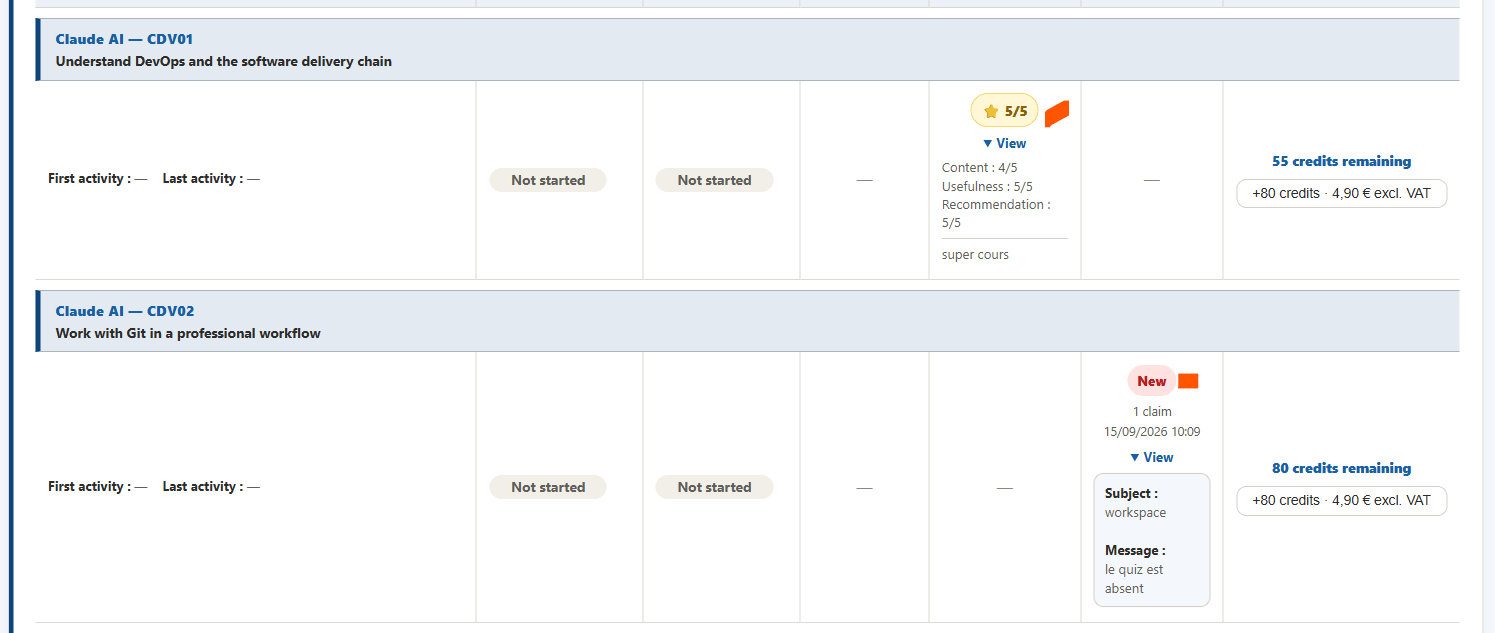
The Review column shows the learner rating and the detail of content, usefulness, recommendation and comment.
The Claim column shows status, date, subject and message for a recorded claim.
In the tracking table, Credits / Top-up also shows remaining credits and, when available, the top-up proposed for the relevant Learning Workspace.
6. Verifiable certificates
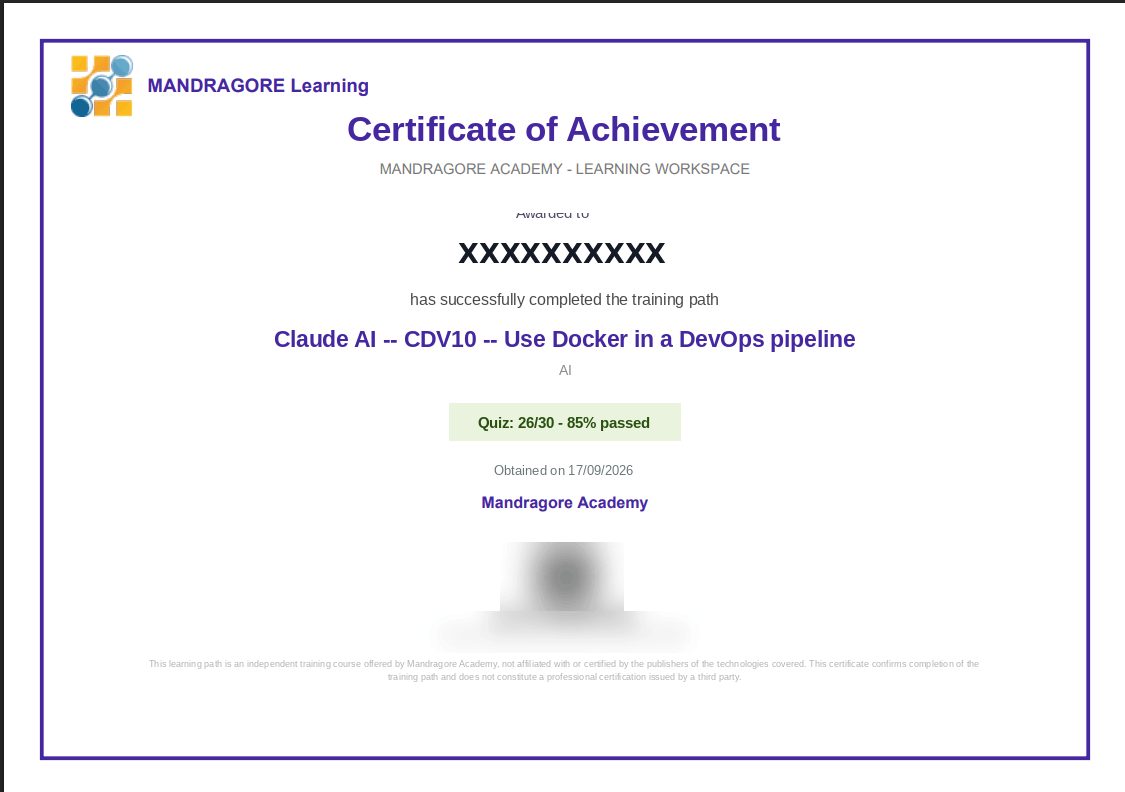
The person responsible for training in the organisation can open the learner certificate from Team tracking.
The certificate includes the learner name, completed course, quiz score, issue date, a unique reference and a QR code. The reference and QR code can be used to verify authenticity.
7. What Team tracking lets you do
- Identify not-started, in-progress and completed courses.
- Spot inactivity using first and last activity dates.
- Check lesson progress and quiz results.
- Top up a learner’s Learning Workspace directly when the card offers a top-up.
- Review starting-level assessments and recommendations.
- Read reviews and claims.
- See remaining credits and top-up options.
- Open and verify certificates.