1. Dashboard overview
The dashboard is organised into complementary areas so you can quickly find a purchased course, monitor progress and access account functions.
Header action buttons
Refresh credits, lessons & quizzes synchronises the display. Support opens ticket tracking. Starting level opens the assessment. Purchase history gives access to purchases, top-ups and invoices.

2. Using the left menu
The left menu lists the domains and learning paths for which you own at least one Workspace.
When you click a learning path, the corresponding purchased course or courses appear automatically in the main area.
3. Reading my training cards
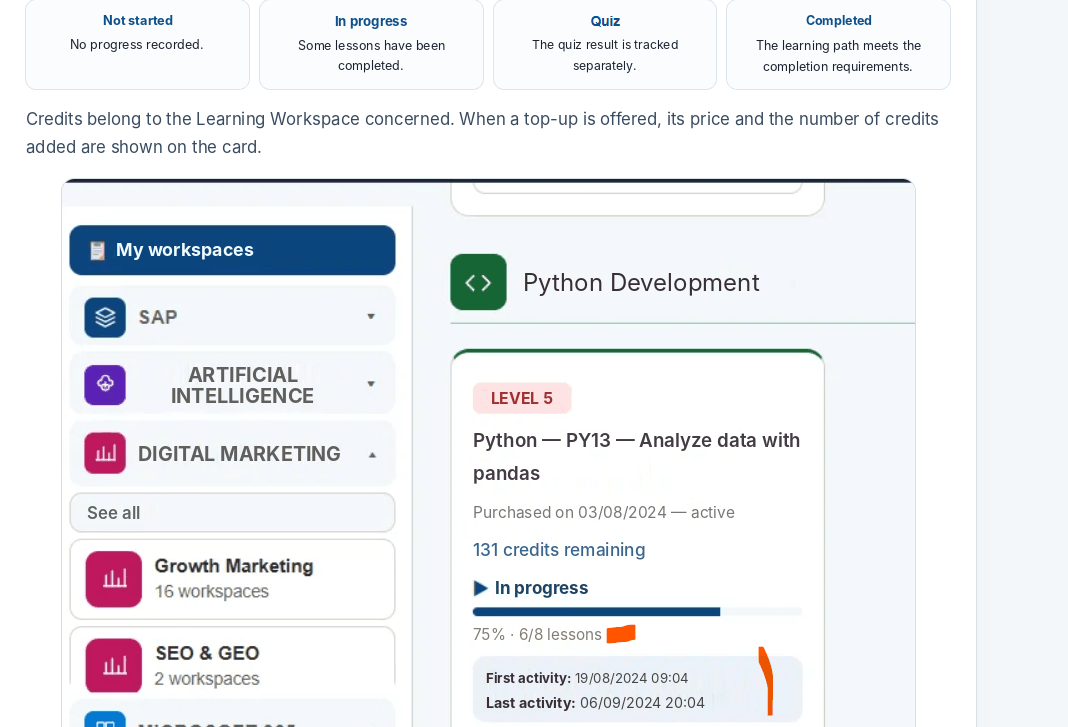
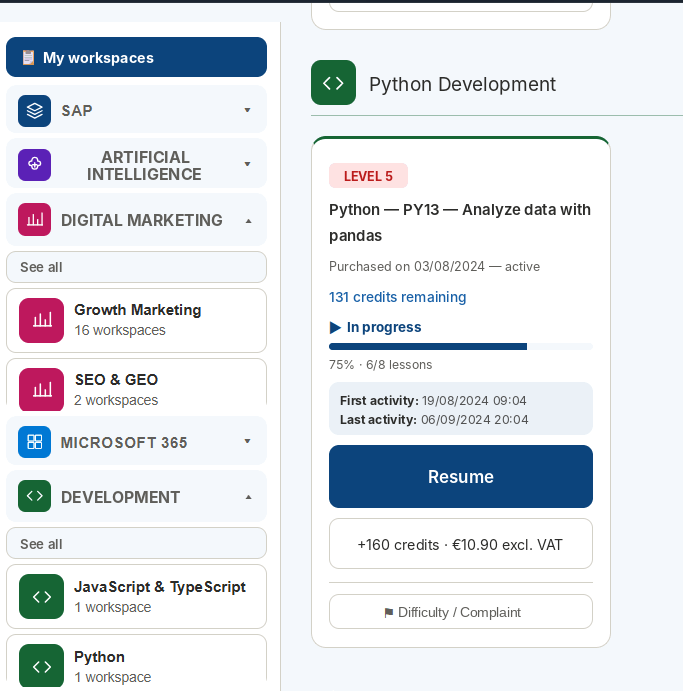
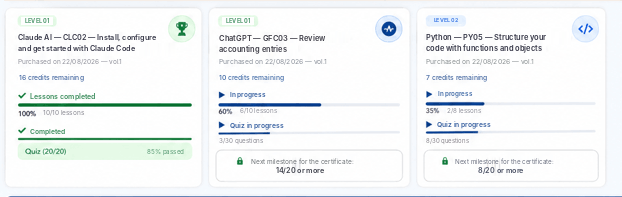
Each card may show course level, title, purchase date, remaining credits, status, progress percentage, lessons completed, quiz progress, first and last activity, open/resume, optional top-up, certificate, feedback and Difficulty / Complaint.
The cards show where you are without opening the Workspace.
4. Understanding progress, activity and credits
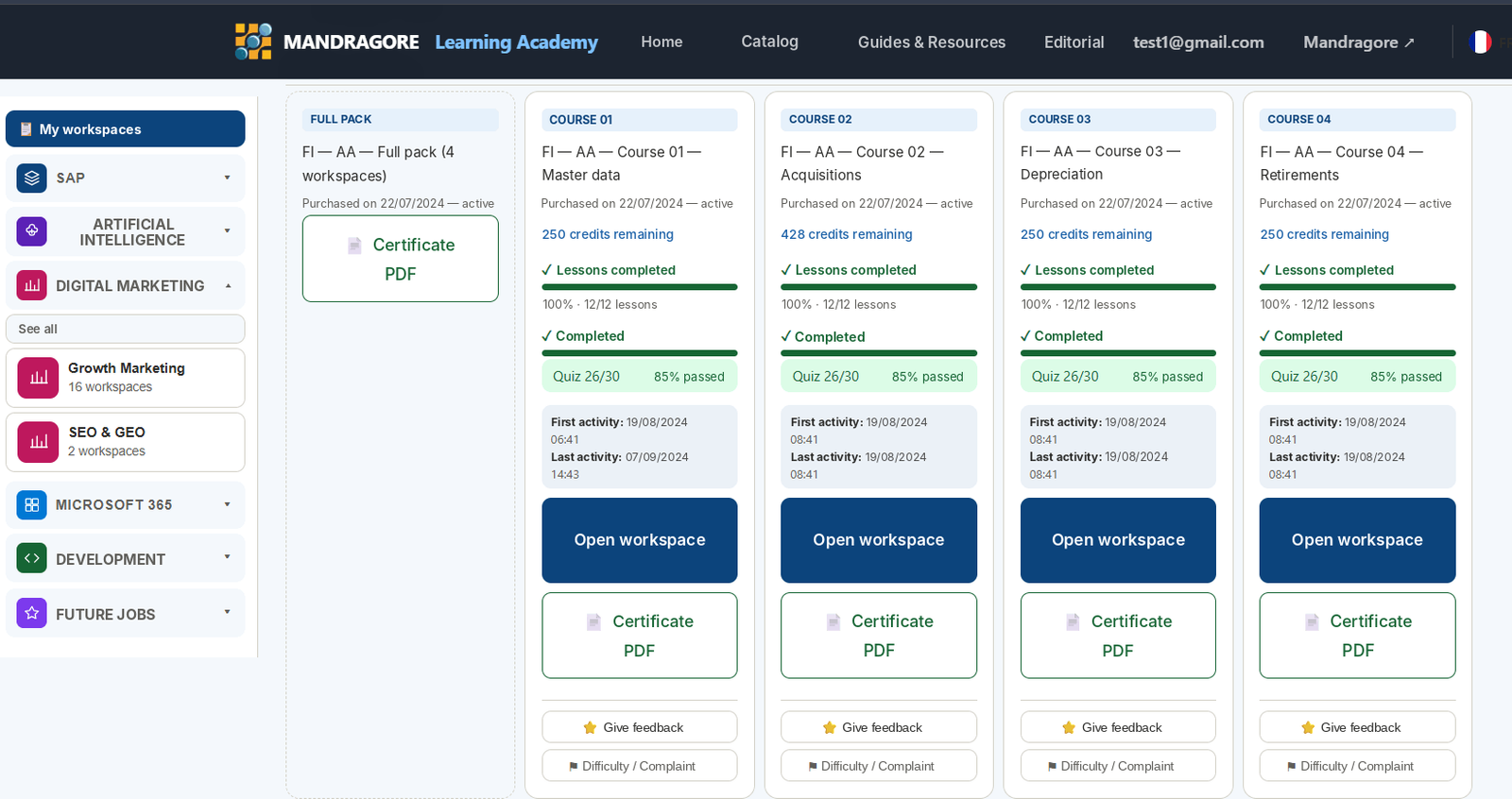
Progress combines a percentage with the number of completed lessons out of the total.
Example: 75% · 6/8 lessons means 6 of 8 lessons completed.
The card also records First activity and Last activity.
The quiz is tracked separately
Lesson progress and quiz progress are deliberately separated.
Credits and top-ups
Credits belong to the relevant Learning Workspace; remaining credits are shown on the card.
5. Exploring the catalogue from the bottom of the dashboard
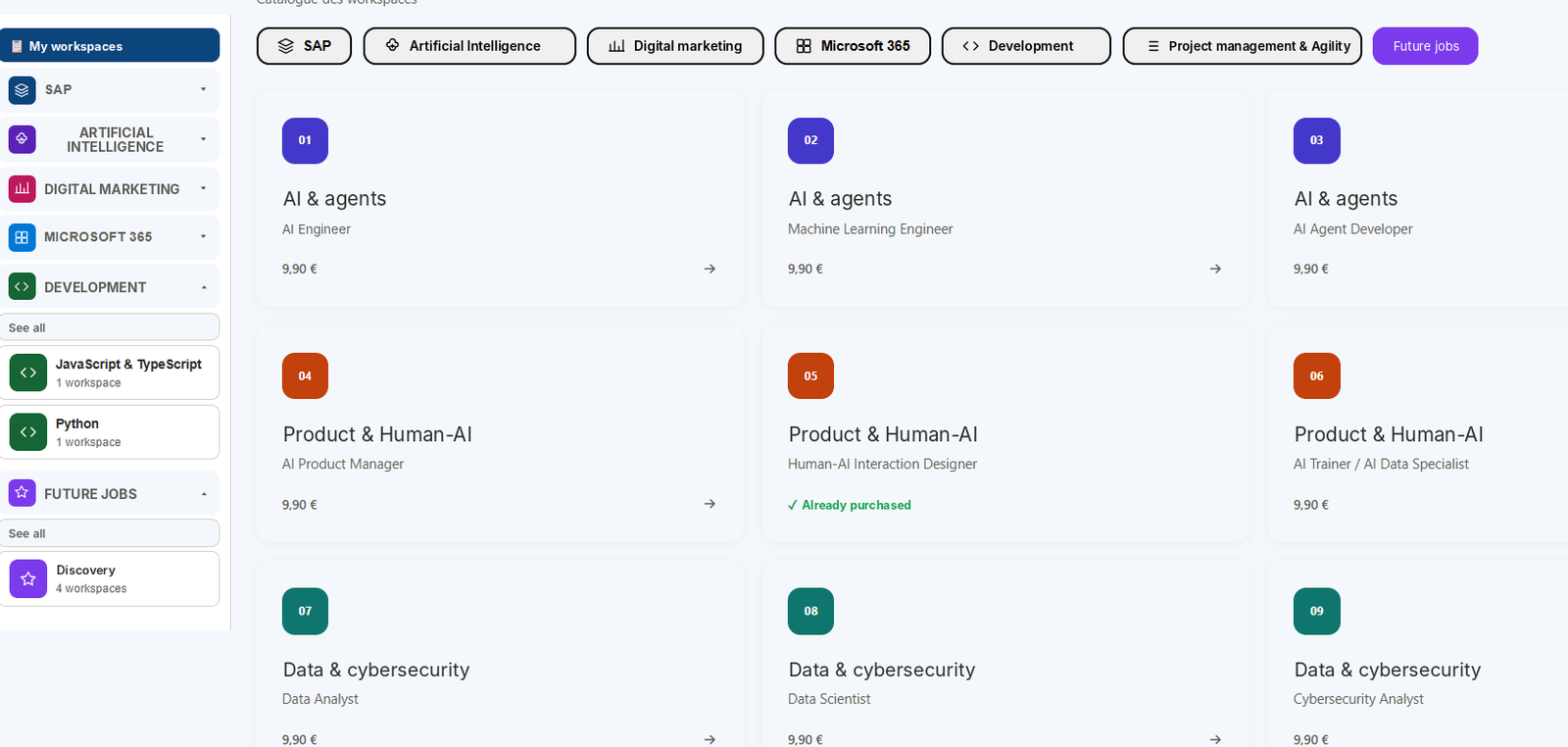
The Workspace Catalogue lets you browse other offers available for purchase.
Each card shows the learning path, title and price; Already purchased may be displayed.
6. Assessing my starting level
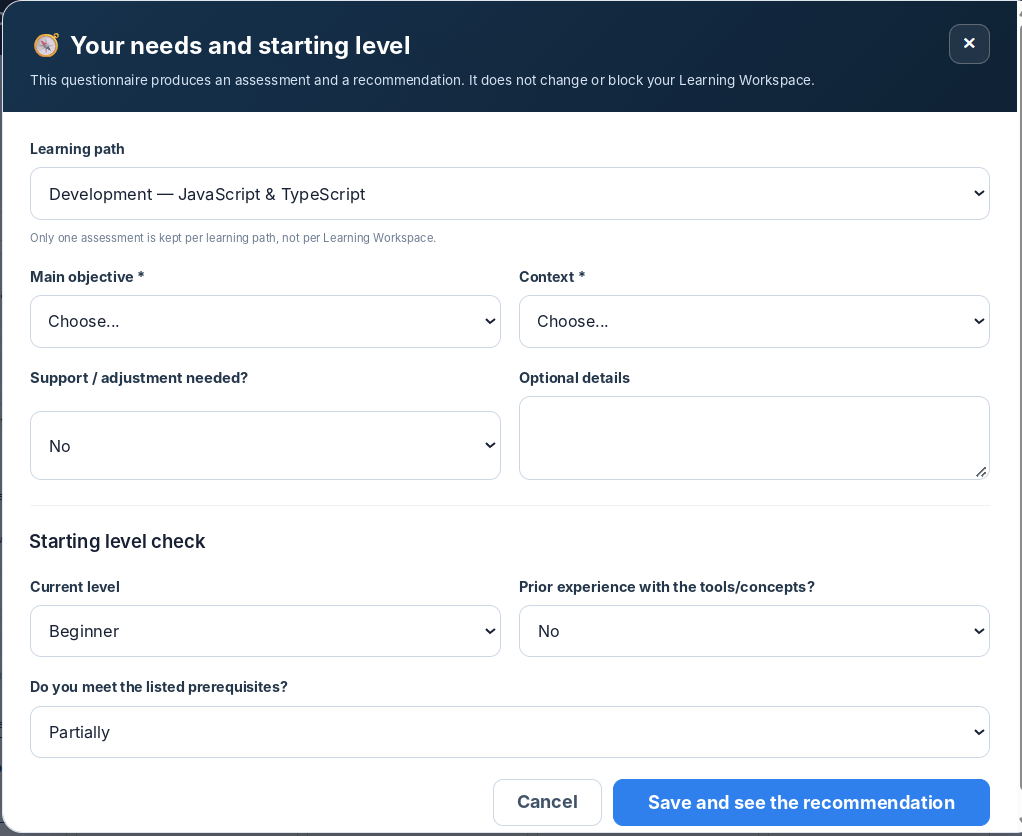
The starting level helps assess your experience. It never blocks access to training.
The questionnaire considers your objective, context, support/accommodation needs, level, experience and prerequisites.
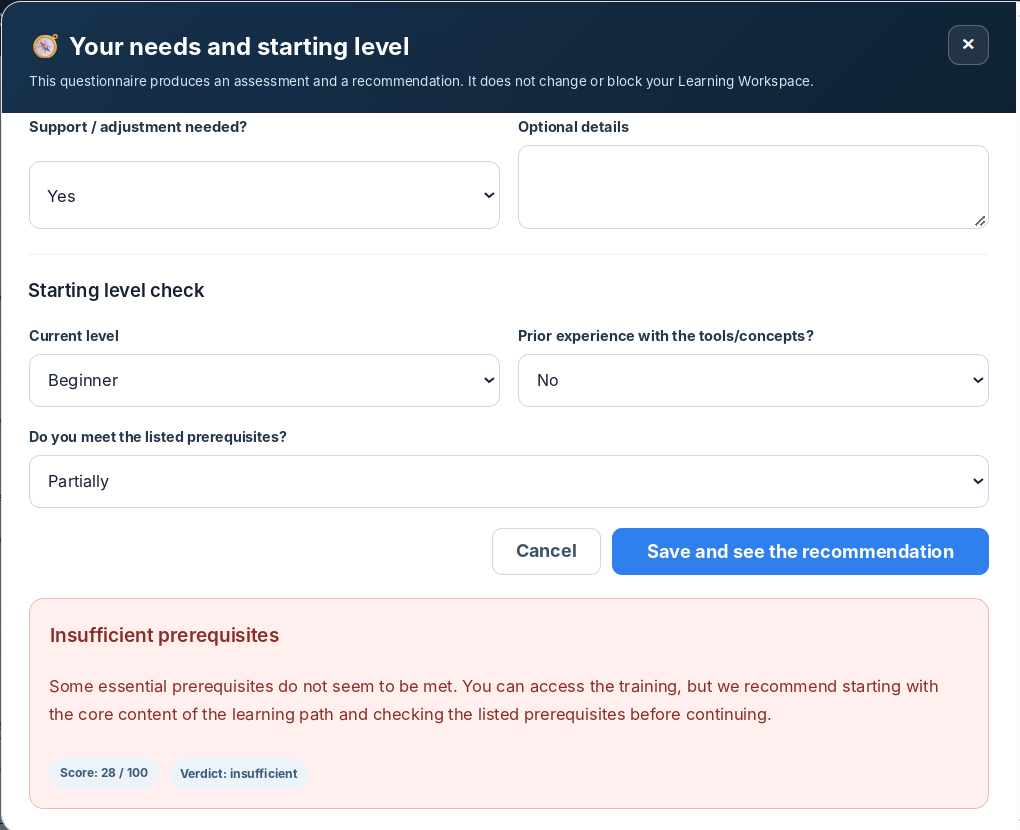
The result is stored by learning path. You can view, reassess or delete it.

7. Obtaining and verifying my certificate
A certificate requires all lessons completed and the final quiz to meet the minimum score.
It shows the learner, learning path, quiz result, issue date, unique reference and verification QR code.
The reference and QR code allow authenticity verification.
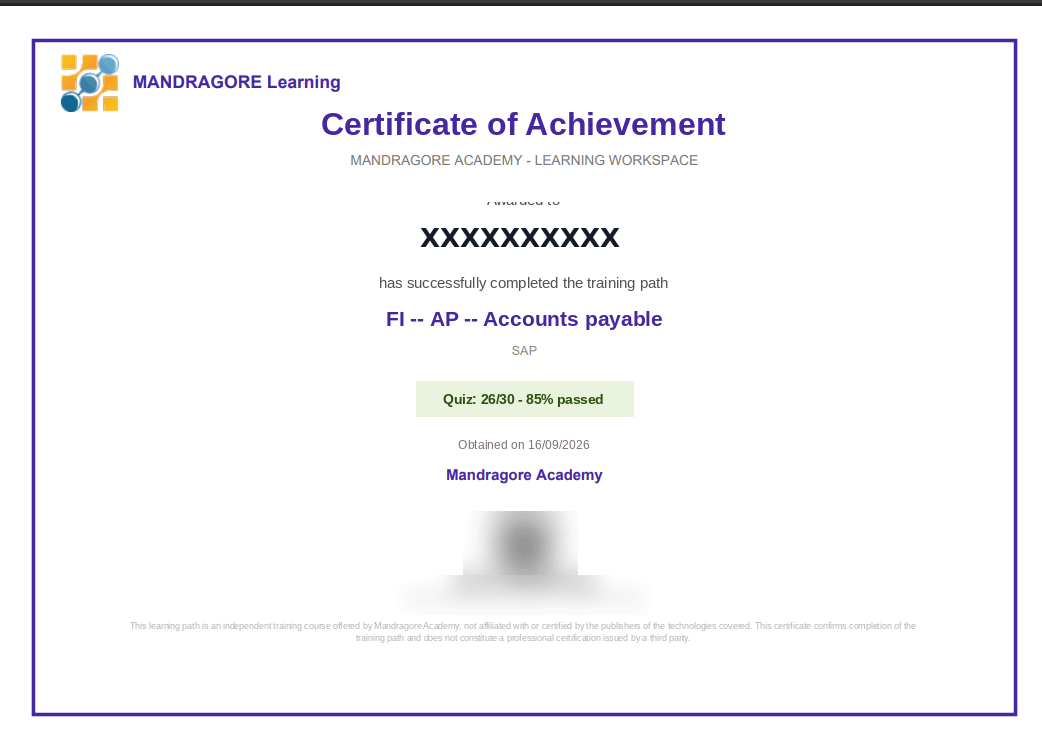
A complete-pack certificate may also be available.
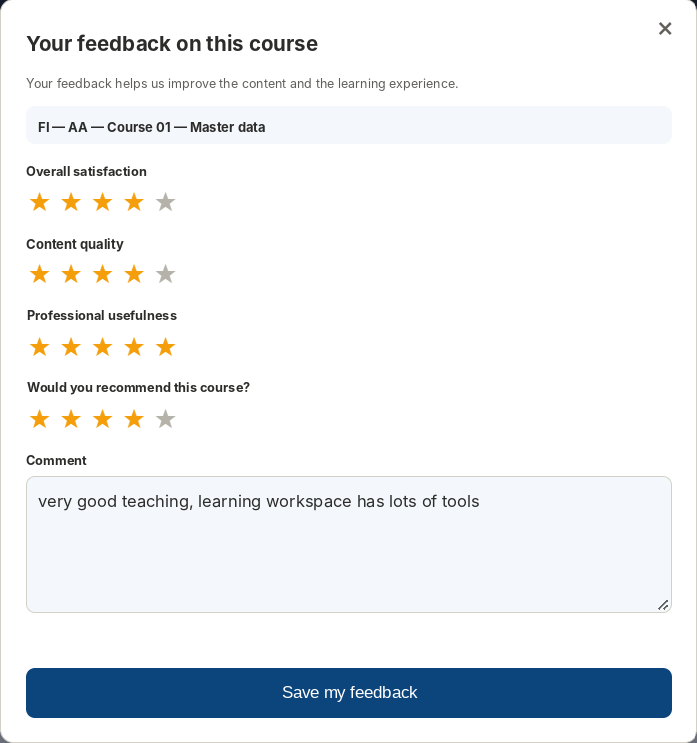
8. Leaving feedback
After completion you can rate overall satisfaction, content quality, professional usefulness and recommendation, and add a comment.
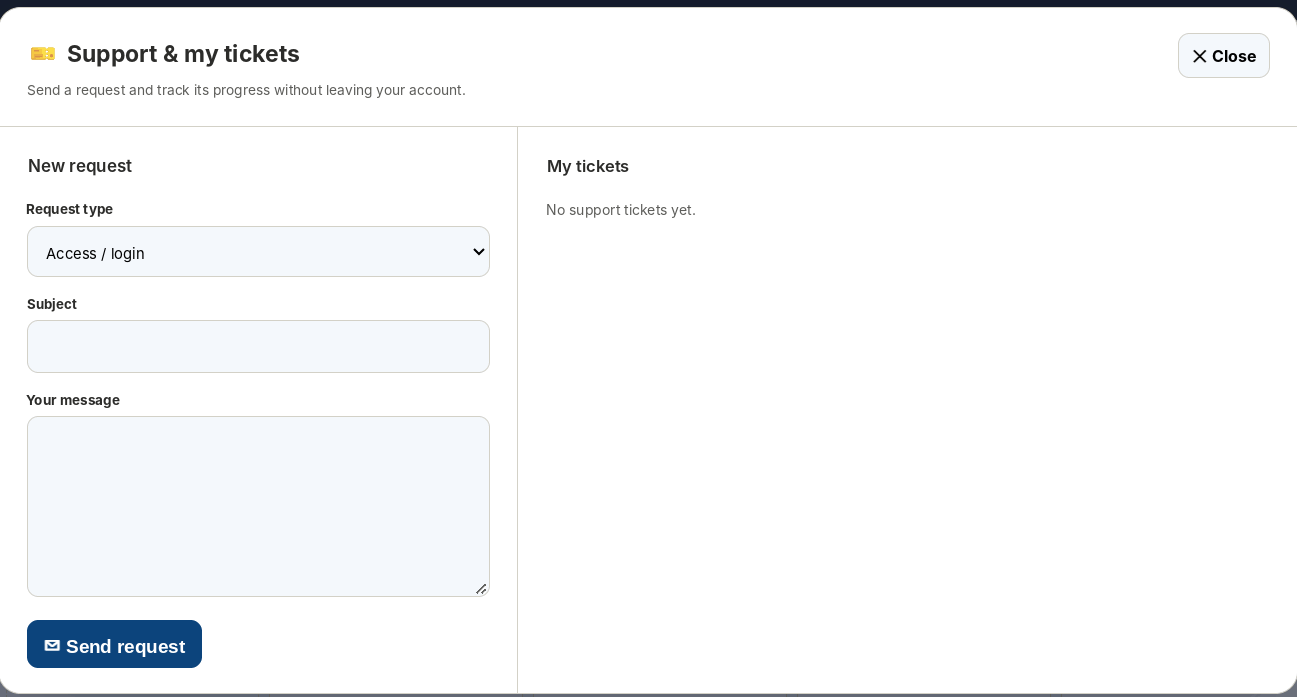
9. Contacting Support and tracking tickets
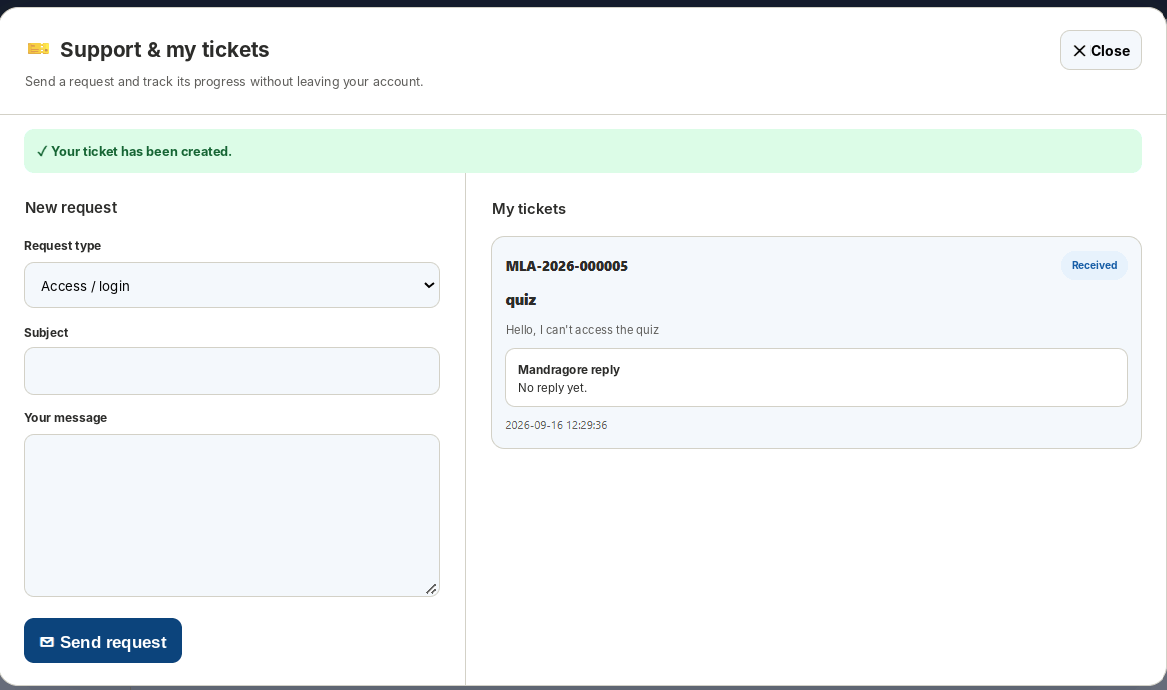
Support covers routine help: access, sign-in, functionality, quiz, invoice and technical/administrative questions.
Each request receives a ticket number and status; Mandragore’s reply appears in the same window.
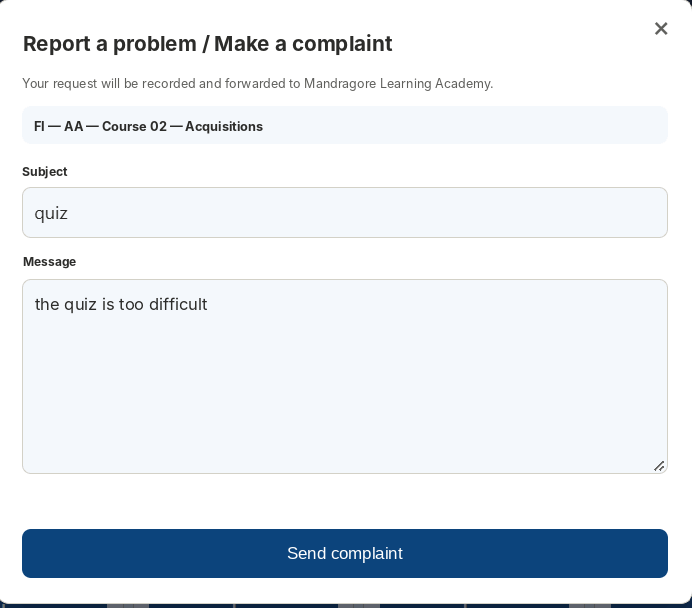
10. Difficulty / Complaint: separate from Support
🎫 Support
Help, access, sign-in, question, bug, invoice or routine request.
⚑ Difficulty / Complaint
Training-related difficulty or a formal complaint requiring a quality record.
The Difficulty / Complaint button is available on the relevant course.
11. Viewing purchases, top-ups and invoices
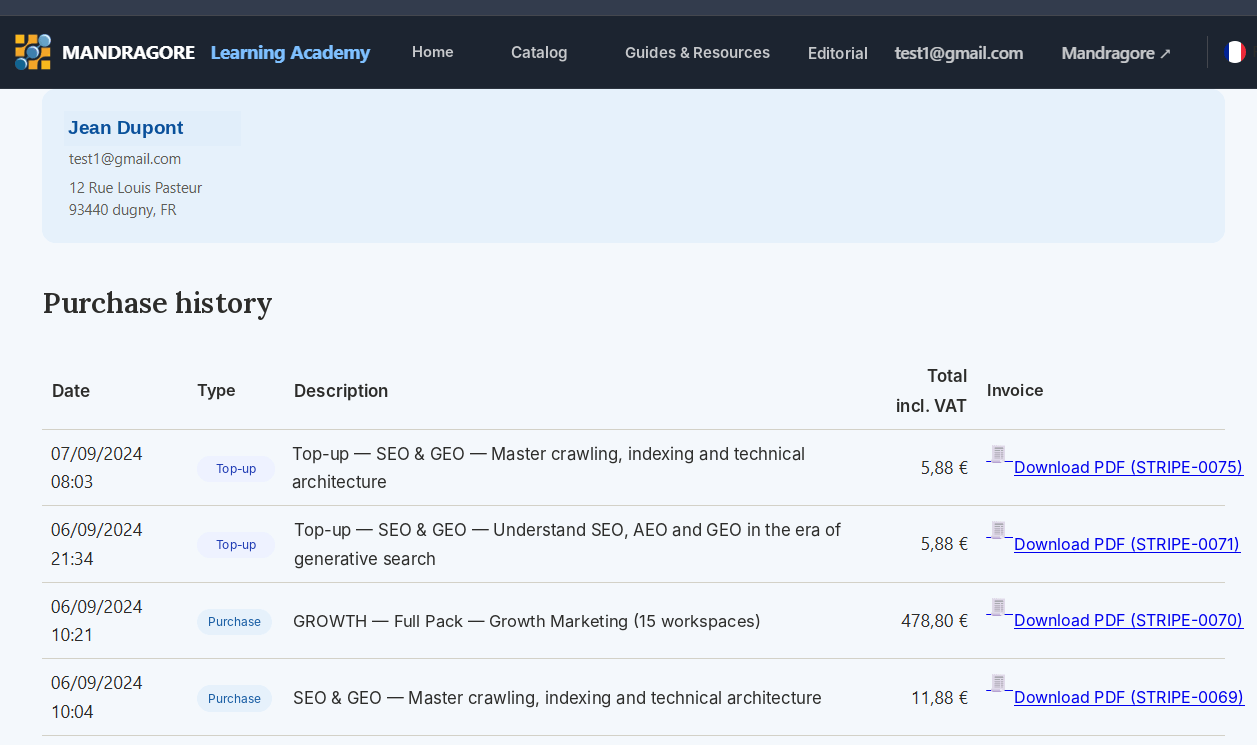
Purchase history centralises training/pack purchases and credit top-ups with date, type, description, amount and PDF invoice.